View Interface details
The Interface details page is the home base for a saved Interface. Use it to inspect the Interface, edit it, manage versions, and create projects from it.
To open it, select Interfaces in the main menu and then select the Interface you want to view.
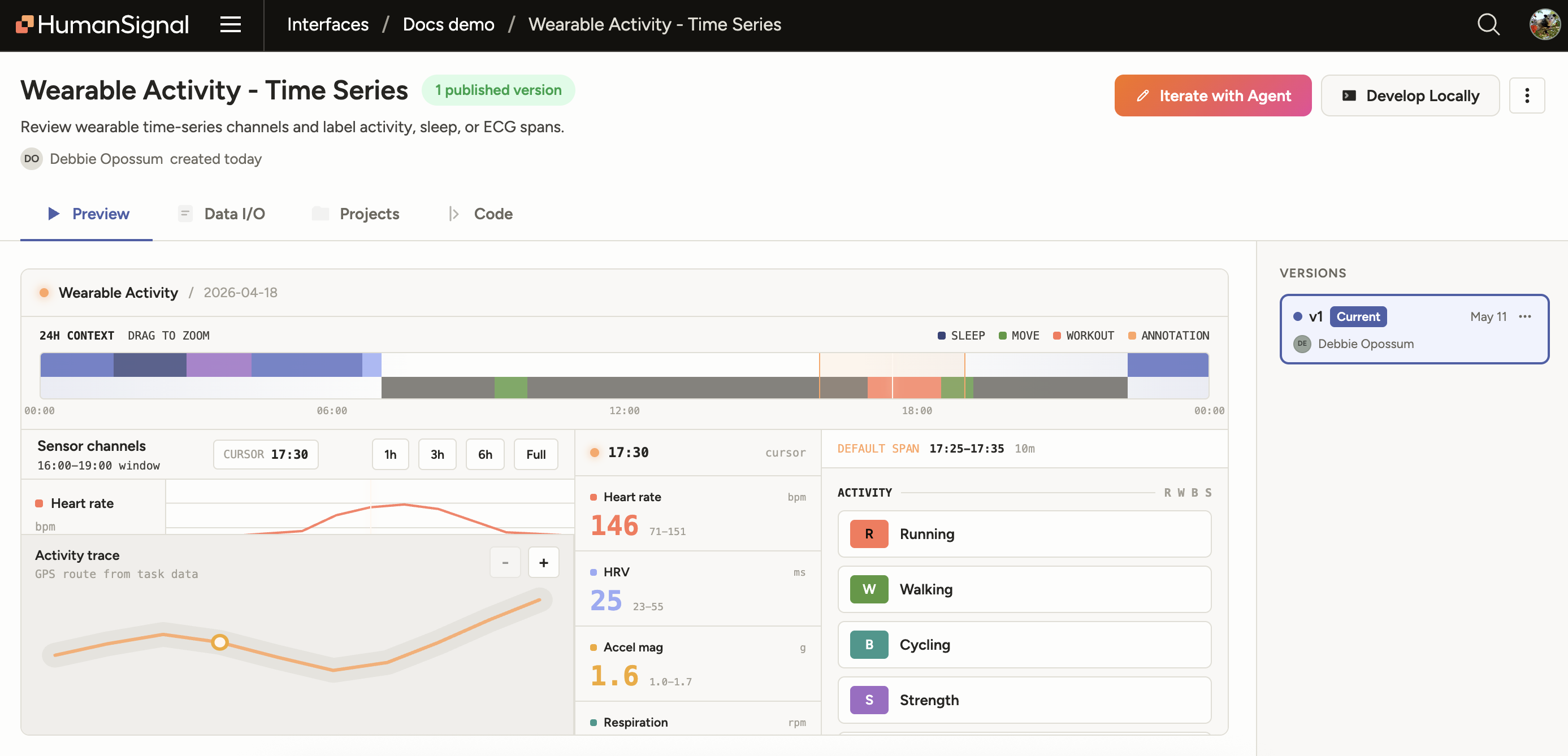
Actions
The top bar of the Interface details page provides the following actions:
| Button | Description |
|---|---|
| Iterate with Agent | Open the interface editor with the agent. This will open a new tab with the interface editor and the agent. |
| Develop Locally | Install the create-interface-skill and work with a local coding agent to develop your Interface. |
And from the overflow menu in the top right corner of the page:
| Action | Description |
|---|---|
| Edit | Edit the Interface name and description. |
| Create Project | Starts a new project pinned to the version currently selected in the version navigator. For more information, see Use an Interface in a project. |
| Duplicate | Creates a new copy of the Interface. |
| Delete | Delete the Interface. This action is not available if the Interface is used by any projects. |
Tip
Template Interfaces can only be used and edited by duplicating them first.
Preview
The Preview section renders the Interface against the current sample task data, exactly as a labeler will see it. Click through the controls to confirm the Interface behaves the way you expect.
Tip
The preview always reflects the version currently selected in the version navigator. Switch versions to compare how the Interface behaved at different points in its history.
Versions
A list of versions appears to the right of the Preview section.
Select a version to update the Preview, Data I/O, and Code sections to that version’s source.
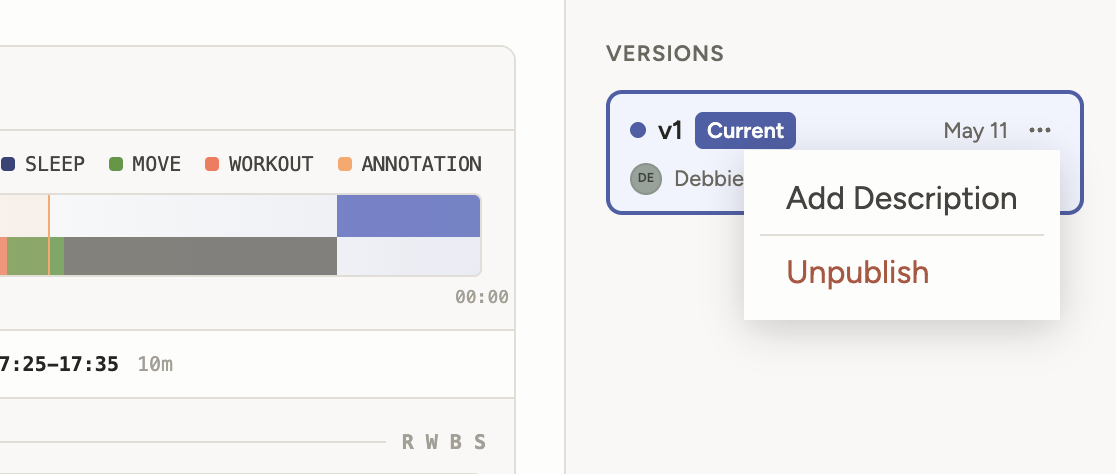
You can also manage versions from the overflow menu next to that version:
| Action | Description |
|---|---|
| Add Description | Add a description to the version. |
| Unpublish | When you create projects from an Interface, project managers can switch between interface versions from the context of the project. Unpublishing a version will hide it from the version list under Project > Settings > Labeling Interface. |
Data I/O
The Data I/O section provides information about the required input and the expected output of the Interface.
Use this section to confirm the Interface reads the task fields you plan to import and produces the annotation shape downstream workflows (exports, analytics, Prompts) expect.
Tip
You can edit the example task data to see how the Interface behaves against realistic data.
Projects
The Projects section lists every project currently using this Interface, along with the version each project is pinned to, the creation date, and the task count.
From this section you can:
- Click a project to open it directly.
- Click Create Project to start a new project from the Interface. The project is pinned to the version currently selected in the version navigator.
Tip
Editing an Interface does not retroactively update existing projects. Each project keeps running against its pinned version until you upgrade it from the project's labeling settings. See Use an Interface in a project for more information.
Code
The Code section shows the read-only JSX source for the selected version. Use it to:
- Audit what the Interface actually does before attaching it to a project.
- Copy snippets to share with teammates or paste into a duplicate.
- Confirm the Interface exposes the optional helpers you expect (such as
paramsSchema,outputSchema, orGridCell).