Create a project from an Interface
Once you have created an Interface, you can create a project from it.
note
You can only use one Interface per project. However, you can customize the Interface and switch between versions in the project settings.
Create a project from an Interface
- From the Interfaces list, click the overflow menu and select Create Project.
- From the Interface details page, select the Projects tab and click Create Project.
| Field | Description |
|---|---|
| Workspace | The workspace where the project will be created. You can only select workspaces for shared Interfaces. |
| Project Title | The name of the project. |
| Description | A description of the project. |
What each project inherits
The project owns its own copy of the Interface code, pinned to the version you selected.
Note the following:
Later edits to the Interface don’t retroactively change existing projects.
A project keeps running its pinned version until someone explicitly changes versions. You can do this from the version selector under Project > Settings > Labeling Interface.
Configuration lives with the project.
Any configurable options the Interface exposes (label names, colors, display text, which task data field holds the primary content, etc.) are stored per project. Editing one project’s configuration does not affect any other project, even projects that share the same Interface and version.
Configure the project’s Interface
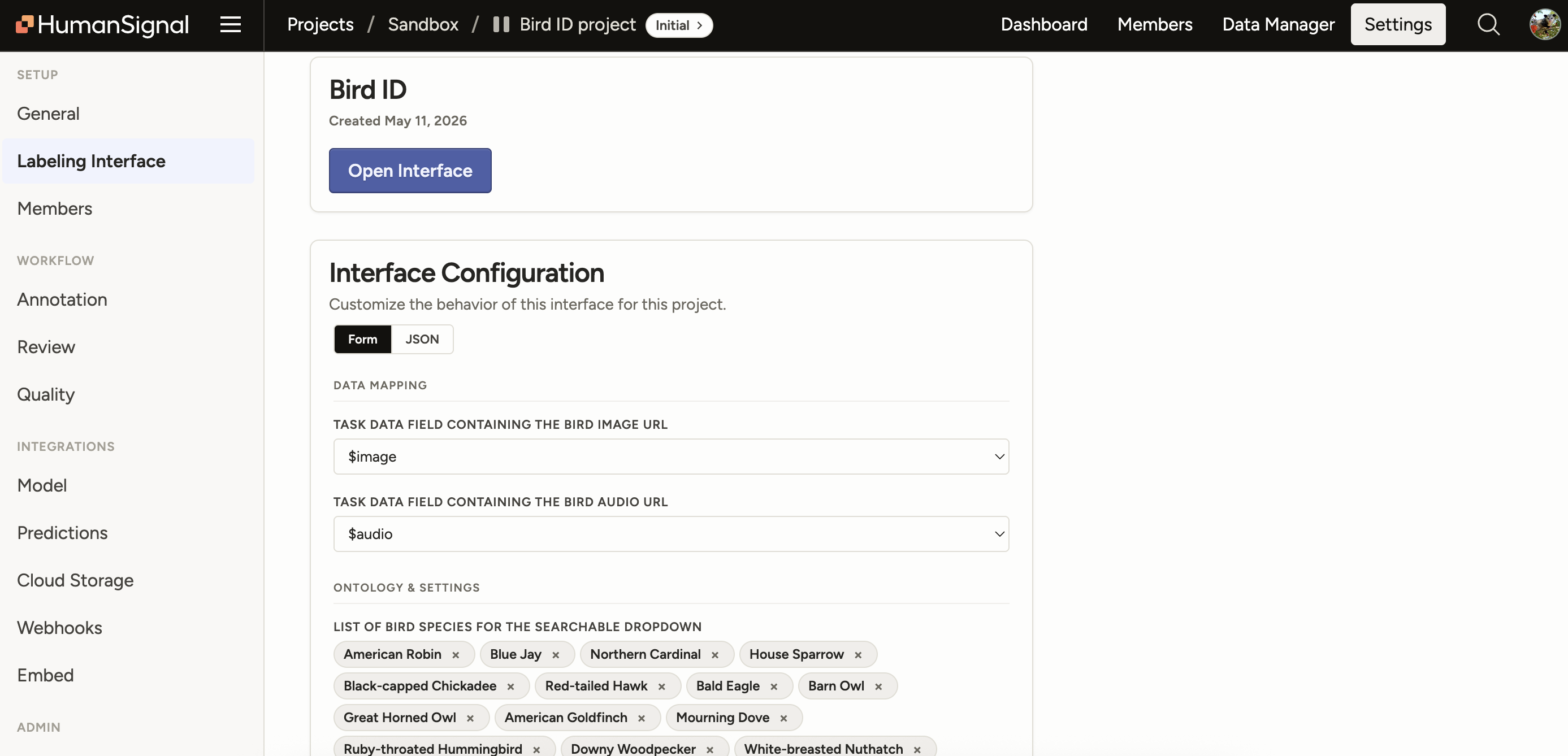
For projects created from Interfaces, you can adjust the UI from Settings > Labeling Interface.
Adjustments you make from the project context will only affect the Interface for that project, and will not iterate the Interface version.
If you want to iterate the Interface version, you can do so from the Interface details page. Click Open Interface.
Source Interface
From here you can see information about the Interface such as its name, creation date, and the version that you are using in the project.
Use the drop-down to switch between versions.
Interface configuration
From here you can configure labeling elements such as label names, colors, and display text.