Document AI 🔒
This template creates a document understanding Interface for annotating PDFs and document images with region labels, transcribed text, table structure, and document- or page-level classifications.
Annotators draw bounding boxes around document regions, select text spans backed by hOCR word positions, mark up table structure with editable row and column dividers, transcribe captured text, link related regions to each other, and classify the document as a whole or page-by-page — producing the rich, structured output Document AI teams need for layout, OCR, and field-extraction workflows.
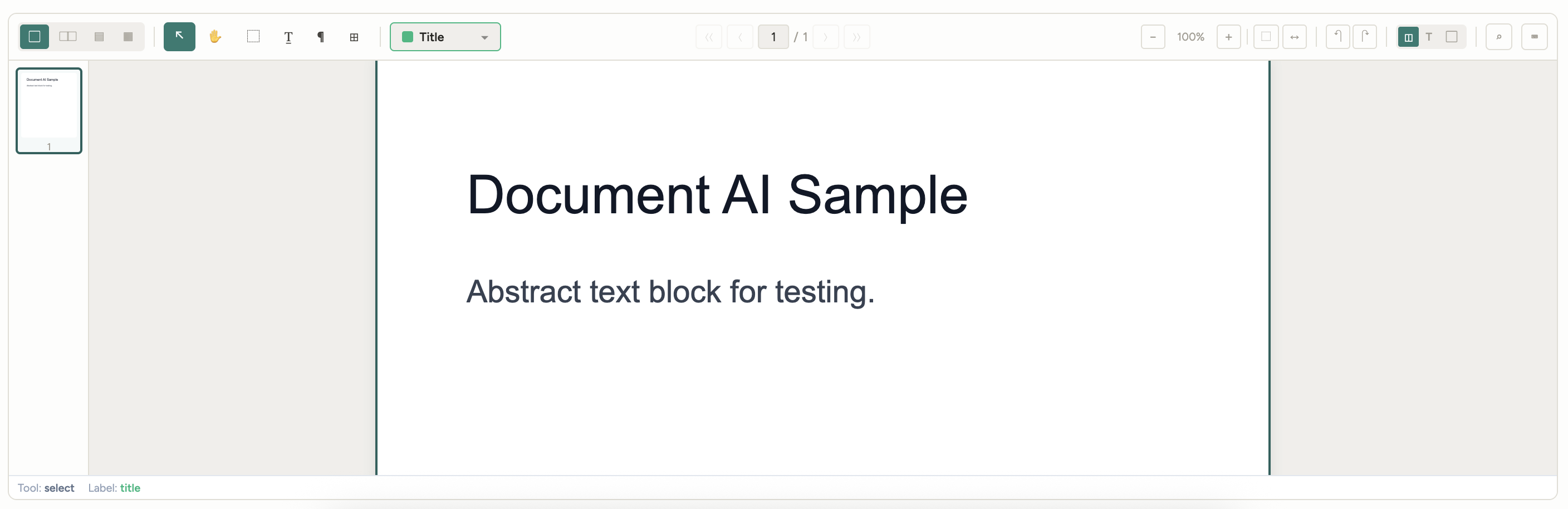
The example Interface includes:
- PDF and image viewer with multi-page navigation, zoom, pan, and a hOCR-driven text layer for word-level selection.
- Annotation tools — Selection, pan, bounding box, text span (drag select), word picker, and table — each with a single-key shortcut.
- Entity labels for tagging regions (Title, Author, Abstract, Section Header, Figure, Table, Citation, etc.) with hotkeys
1-9for the first nine labels. - Table editor with draggable row and column dividers, per-cell labels, merged-cell support, and auto-extracted cell transcriptions.
- Classification panel for document-level and page-level type assignments.
- Region linking so annotators can connect related regions (for example, linking a figure caption to its figure or a citation to its reference).
- Field extraction schema that binds annotated regions to a structured field set (paper title, authors, venue, year, etc.).
Enterprise
Interfaces can only be used in Label Studio Enterprise and Starter Cloud.
note
To use template Interfaces, you must first create an editable copy of the Interface. From Interfaces >Templates, select the overflow menu next to the template you want to use and click Duplicate.
Interface UI
The Interface is divided into a tool/entity rail on the left, a document viewport in the center, and a tabbed inspector panel on the right.
Tool and entity rail
A vertical rail with two stacks:
- Tools — Select (
V), Pan (H), Bounding box (B), Text span (T), Words (P), and Table (R). The active tool determines what a click-and-drag does in the viewport. - Entity labels — One button per entry in
entityTypes. The first nine entries get hotkeys1-9. Selecting an entity sets the label applied to the next annotation you create.
Document viewport
The main reading column.
- For PDFs, pages render via PDF.js with continuous scroll, current-page indicator, zoom controls, and page-jump navigation.
- For images, a single-page viewport renders the source
imagefield. - When an
hocrfield is provided, word-level positions are overlaid so the Text span and Words tools can select real text — bounding boxes drawn over text also auto-capture atranscription. - Existing annotations render as colored overlays. Selected regions show resize handles in all eight positions.
- Tables render with draggable row and column dividers. Right-clicking a cell opens a per-cell label menu and exposes a merge action.
Inspector panel
A right-side rail with five tabs:
- Annotations — List of every region with its entity label, page range, transcription preview, and a per-row delete control.
- Transcription — Editable transcription text for the selected region, with an OCR button when the sandbox bundle provides
documentAI.recognizeImage. - Classifications — Toggleable chips for Document type (drawn from
documentTypes) and per-page Page type (drawn frompageTypes). - Links — View and create links between regions. Each link is stored on the source region as
linkedTo: [targetId, ...]. - Extraction — A configurable schema that binds entity types to named fields (for example,
Authors→ all regions labeledAuthor). Preview the resulting structured object before saving.
A search bar above the panel filters regions by transcription text or entity label.
React code
The full Screen.jsx source is roughly 9,400 lines, so the snippets below highlight the parts you are most likely to customize:
- The params you wire to your task data,
- The entity color map used by the viewport and the Outliner,
- The internal
PROJECT_CONFIGblock where tools, features, and the extraction schema live, - The result shape it writes back to Label Studio.
Interface params
Set or rename a param on the Interface config to point at different task fields, or to replace any of the three label sets (region labels, document types, page types). The defaults mirror the example input below.
const paramsSchema = {
  type: "object",
  title: "Document AI Parameters",
  properties: {
    pdfField: {
      type: "dataField",
      default: "pdf",
      description: "Task data field containing the PDF URL",
    },
    entityTypes: {
      type: "labels",
      description: "Labels available for annotating document regions",
      default: [
        { name: "Title",          color: "#10b981" },
        { name: "Author",         color: "#8b5cf6" },
        { name: "Abstract",       color: "#06b6d4" },
        { name: "Section Header", color: "#f59e0b" },
        { name: "Paragraph",      color: "#64748b" },
        { name: "Figure",         color: "#10b981" },
        { name: "Table",          color: "#f97316" },
        { name: "Citation",       color: "#6366f1" },
        // ...
      ],
    },
    documentTypes: {
      type: "labels",
      description: "Document-level classification labels",
      default: [
        { name: "Research Paper",   color: "#3b82f6" },
        { name: "Review Article",   color: "#8b5cf6" },
        { name: "Technical Report", color: "#10b981" },
        // ...
      ],
    },
    pageTypes: {
      type: "labels",
      description: "Page-level classification labels",
      default: [
        { name: "Title Page", color: "#10b981" },
        { name: "Abstract",   color: "#06b6d4" },
        { name: "Content",    color: "#3b82f6" },
        { name: "Tables",     color: "#f97316" },
        // ...
      ],
    },
  },
};
The Interface also reads the imageField and hocrField from the input schema, defaulting to image and hocr respectively. Either pdf or image must be provided.
Entity color map
ENTITY_COLORS is the module-level color table used by getEntityColor, toScreenRegionFromAnn, and the viewport overlays. Keep it in sync with entityTypes if you rename or add a label — entries here use the entity’s internal id (lowercase, snake_cased) rather than the user-facing label.
const ENTITY_COLORS = {
  title: "#10b981",          author: "#8b5cf6",          affiliation: "#a855f7",
  abstract: "#06b6d4",       section: "#f59e0b",         paragraph: "#64748b",
  figure: "#10b981",         figure_caption: "#34d399",  table: "#f97316",
  table_caption: "#fb923c",  equation: "#ec4899",        citation: "#6366f1",
  reference: "#818cf8",      list: "#14b8a6",            footnote: "#78716c",
  header: "#9ca3af",         footer: "#6b7280",          page_number: "#525252",
  classifications: "#94a3b8", classificationMetadata: "#94a3b8",
};

function getEntityColor(entityType) {
  return ENTITY_COLORS[entityType] || "#94a3b8";
}
Tools, features, and extraction schema
Inside DocumentLabelingInterface, PROJECT_CONFIG is the single source of truth for the tool palette, feature flags, and the default field-extraction schema. The params from the Interface settings override entityTypes, documentTypes, and pageTypes; everything else (tools, features, fields) is edited here.
const PROJECT_CONFIG = {
  name: "Scientific Paper Labeling",
  contentType: "pdf",
  tools: {
    select: true,  // Selection tool (V)
    pan: true,     // Pan/hand tool (H)
    box: true,     // Bounding box tool (B)
    span: true,    // Text span selection (T)
    words: true,   // Word selection tool (P)
    table: true,   // Table annotation (R)
  },
  features: {
    documentClassification: true,
    pageClassification: true,
    linking: true,
    transcription: true,
    tableEditing: true,
    search: true,
    extraction: true,
  },
  // entityTypes, documentTypes, pageTypes are seeded here but
  // are overridden by params when the Interface is configured.
  fields: [
    { id: "paper_title", label: "Paper Title",   type: "string" },
    { id: "authors",     label: "Authors",       type: "string" },
    { id: "venue",       label: "Venue/Journal", type: "string" },
    { id: "year",        label: "Year",          type: "string" },
  ],
};
Result shape
getResults emits one Label Studio result per region. Every result uses from_name: "documentai" and type: "documentai", and the full annotation payload — including any kind-specific fields — is serialized into value. The annotation type field inside value distinguishes the four shapes the Interface produces.
function getResults(regions, _relations) {
  return regions
    .filter(r => r._documentAI)
    .map(r => ({
      id: r.id,
      from_name: "documentai",
      to_name: "document",
      type: "documentai",
      value: { ...r._documentAI },
      origin: "manual",
    }));
}
The four annotation shapes inside value are:
- Bounding box —
{ type: "boundingBox", entityType, x, y, w, h, page, startPage, endPage, transcription, linkedTo? } - Text span —
{ type: "textSpan", entityType, x, y, w, h, highlightRects, selectedText, transcription, spans, page, startPage, endPage } - Table —
{ type: "table", entityType: "table", x, y, w, h, tableData: { rows, cols, headerRows, headerCols, cellLabels, mergedCells, cellTranscriptions } } - Classification metadata —
{ type: "classificationMetadata", entityType: "classifications", documentClassification, pageClassifications }
Coordinates x, y, w, and h are page-relative percentages (0-100).
Example input
The Interface expects a task data object with a document source — either pdf (a PDF URL) or image (an image URL) — and optionally an hocr string that provides word-level positions for text-span and word-picker selection. Field names are configurable via pdfField, imageField, and hocrField.
Click to expand
{
  "data": {
    "pdf": "https://example.com/papers/2026-05-attention-is-all-you-still-need.pdf",
    "hocr": "<?xml version=\"1.0\" encoding=\"UTF-8\"?>\n<html xmlns=\"http://www.w3.org/1999/xhtml\">\n  <body>\n    <div class=\"ocr_page\" id=\"page_1\" title=\"bbox 0 0 800 1000\">\n      <span class=\"ocrx_word\" title=\"bbox 80 140 480 188\">Attention</span>\n      <span class=\"ocrx_word\" title=\"bbox 490 140 560 188\">Is</span>\n      <span class=\"ocrx_word\" title=\"bbox 570 140 670 188\">All</span>\n      <!-- ... more ocrx_word entries ... -->\n    </div>\n  </body>\n</html>"
  }
}
An image-only task replaces pdf with an image URL:
{
  "data": {
    "image": "https://example.com/scans/invoice-2026-05-13.png",
    "hocr": "<?xml version=\"1.0\" encoding=\"UTF-8\"?> ... </html>"
  }
}
Example output
The saved annotation contains one result per region. The example below shows all four annotation shapes — a bounding box around the title (with a linkedTo reference), a text-span over the abstract, a table on page 3, and a single classification-metadata entry that holds the document and per-page types.
{
  "result": [
    {
      "id": "1747156800000",
      "from_name": "documentai",
      "to_name": "document",
      "type": "documentai",
      "value": {
        "id": 1747156800000,
        "type": "boundingBox",
        "entityType": "title",
        "x": 12.5, "y": 8.2, "w": 75.0, "h": 4.8,
        "page": 1, "startPage": 1, "endPage": 1,
        "transcription": "Attention Is All You Still Need",
        "linkedTo": [1747156800001]
      }
    },
    {
      "id": "1747156800002",
      "from_name": "documentai",
      "to_name": "document",
      "type": "documentai",
      "value": {
        "id": 1747156800002,
        "type": "textSpan",
        "entityType": "abstract",
        "x": 12.4, "y": 18.6, "w": 75.3, "h": 11.2,
        "highlightRects": [
          { "x": 12.4, "y": 18.6, "w": 75.3, "h": 1.6 },
          { "x": 12.4, "y": 20.4, "w": 75.3, "h": 1.6 }
        ],
        "selectedText": "We revisit the original Transformer architecture and find that...",
        "transcription": "We revisit the original Transformer architecture and find that...",
        "spans": ["w_42", "w_43", "w_44", "w_45"],
        "page": 1, "startPage": 1, "endPage": 1
      }
    },
    {
      "id": "1747156800003",
      "from_name": "documentai",
      "to_name": "document",
      "type": "documentai",
      "value": {
        "id": 1747156800003,
        "type": "table",
        "entityType": "table",
        "x": 14.0, "y": 42.0, "w": 72.0, "h": 22.0,
        "page": 3, "startPage": 3, "endPage": 3,
        "tableData": {
          "rows": [0, 18, 36, 54, 72, 100],
          "cols": [0, 30, 55, 78, 100],
          "headerRows": [0],
          "headerCols": [0],
          "mergedCells": [],
          "cellLabels": { "0,0": "Model", "0,1": "Params", "0,2": "BLEU", "0,3": "Notes" },
          "cellTranscriptions": {
            "1,0": "Baseline", "1,1": "65M",  "1,2": "26.4",
            "2,0": "Ours",     "2,1": "65M",  "2,2": "27.9",
            "3,0": "Ours-Big", "3,1": "213M", "3,2": "29.1"
          }
        }
      }
    },
    {
      "id": "1747156800004",
      "from_name": "documentai",
      "to_name": "document",
      "type": "documentai",
      "value": {
        "id": 1747156800004,
        "type": "classificationMetadata",
        "entityType": "classifications",
        "documentClassification": "research_paper",
        "pageClassifications": {
          "1": "title_page",
          "2": "abstract",
          "3": "tables",
          "4": "content",
          "5": "references"
        }
      }
    }
  ]
}